Have you heard of ArcGIS Field Maps Tasks? Tasks are an exciting capability that provides organisations and their mobile workers with enhanced tools to better manage, plan and co-ordinate fieldwork operations.
If you or your organisation are struggling to keep on top of what work is being done where and by who, Tasks can help provide visibility and structure across your fieldwork. Let’s get into it!
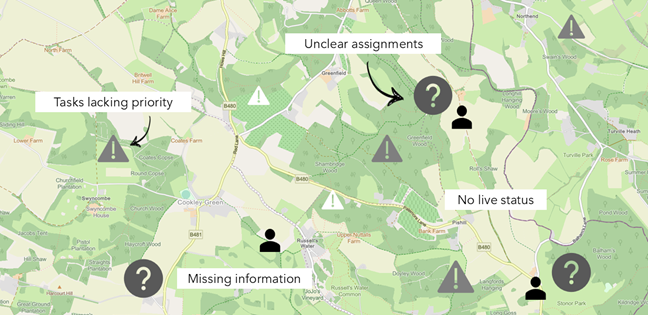
Disorganised field workflows mean tasks lack priority, assignment and information.
Note: the ArcGIS Field Maps Tasks capability is replacing ArcGIS Workforce which is scheduled for retirement in late 2026 – find out more here.
New to ArcGIS Field Maps?
If you’re new to ArcGIS Field Maps like I was, it can feel like there are some different parts to get your head around. So let’s break it down. ArcGIS Field Maps consists of two components.
ArcGIS Field Maps mobile application – available across iOS and Android devices, allows mobile workers to view, collect and update data in the field.
Field Maps Designer – the web companion to the mobile app. This is where you design and build out your mobile map and workflow. It runs in your browser and is accessed via the waffle menu in your ArcGIS Online or ArcGIS Enterprise portal.
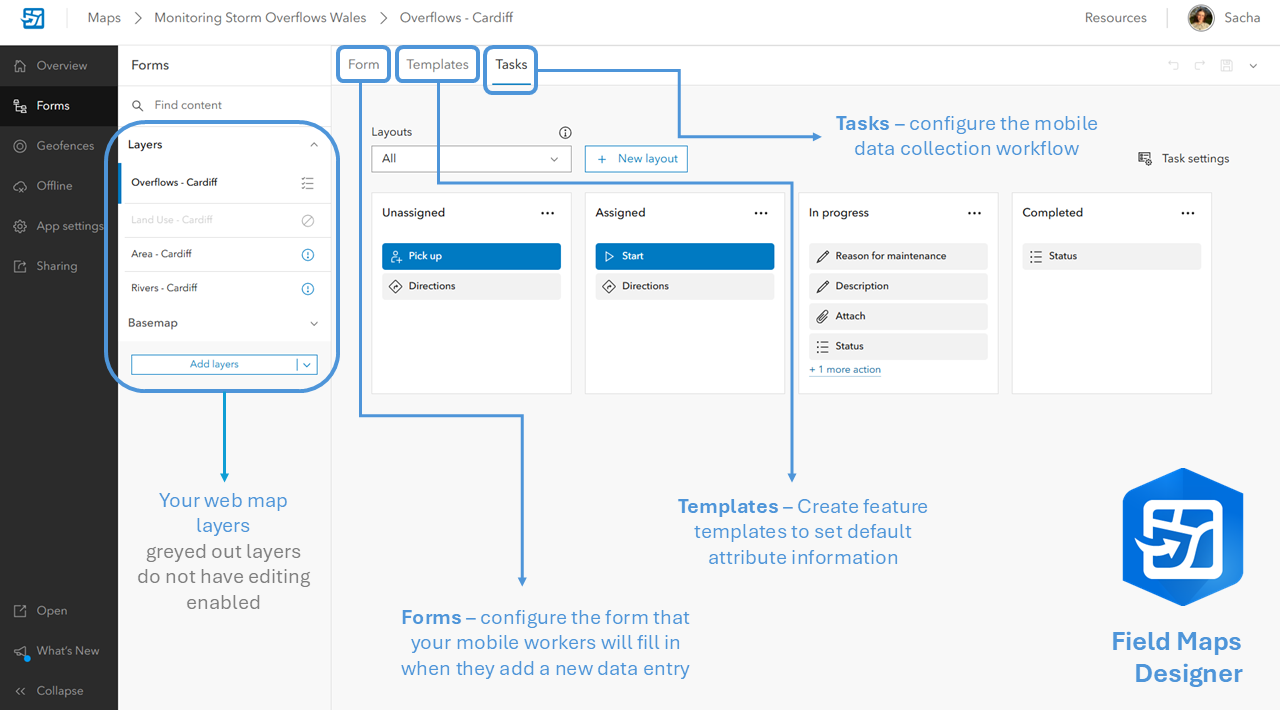
A breakdown of the components in the Field Maps Designer
The benefits of Tasks
I think the easiest way to convey the benefits of Tasks is simply to show them in action.
Let’s see it through the eyes of a mobile worker in Cardiff as they open the ArcGIS Field Maps mobile app and explore the Tasks that they have been assigned in the area…
Handy, right? Here are some of the main benefits I’ve found from exploring the Tasks capability:
Consistency
Tasks standardise mobile work in the field by ensuring that all jobs of a certain type are completed using the same workflow. There is less room for inconsistencies in how information is collected and recorded as each assignment is logged in the same way.
Flexibility
We all know things can change last minute – Tasks are designed to keep up with your workforce as they react to these changes out on site. Mobile workers can clearly identify nearby Tasks, allowing them to pick-up unassigned jobs if they happen to be convenient. Additionally, offline map areas can be configured to support those in areas of limited mobile reception.
Efficiency
Tasks allow your field teams to get things done quickly and effectively. Locate your assigned jobs, request directions to the highest priority Task, fill in the required information, attach photos, and submit your Task as complete – even in disconnected environments.
Accountability
Enabling Tasks on a feature layer automatically pushes through several fields into your feature layer, including Assignee and Status. This makes it clear who is responsible for completing each job, and how complete these jobs are. This structure removes any ambiguity about who is doing what by giving each job a named owner, priority, and date.
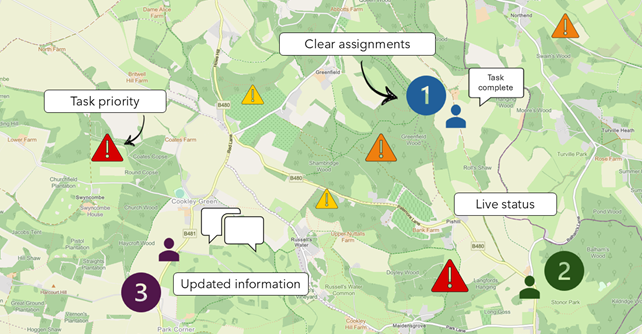
Tasks bring visibility to work in the field, by providing each job with a priority, status, assignee and contextual information.
Re-watch our Welsh Conference 2025 session on customisation considerations in ArcGIS Field Maps for more detail.
How to set up Tasks
Setting up your feature layer
The key thing to note when configuring your Tasks is that it all starts with a hosted feature layer. Making sure that your data is clear and structured is always the best starting point – and something I often have to remind myself of before getting carried away! If you’re trying out Tasks for the first time, start out with some simple data.
This short How-To video shows you how to set up Tasks:
I started with this Storm Overflow Dataset from the ArcGIS Living Atlas of the World, which I pulled into ArcGIS Pro. Here, I exported and simplified the data before publishing it to ArcGIS Online where it is stored as a hosted feature layer.
Once published, you can add your layer into a web map ready for configuration in the Field Maps Designer!
Enabling attachments
If you want your mobile workers to be able to attach photos or other media to their Tasks, you need to enable attachments on your chosen feature layer. The easiest way to do this is to enable attachments via your layer details page (in ArcGIS Online in my case).
Alternatively, you can run the Enable Attachments geoprocessing tool on your layer while it is still in ArcGIS Pro, which will create the necessary relationship class and attachment table to store attachment files. Running this tool requires an ArcGIS Pro Standard or Advanced license – understand more about ArcGIS Pro licensing levels here.
Lastly, you need to make sure that the hosted feature layer is editable. To ensure this, head to your layer’s Overview page, Settings, and toggle on Enable Editing.
Next stop… task settings
Once you have enabled Tasks on your layer in the Web Designer, it’s time to get going!
My first stop was the Task Settings pane, and I think it’s a good place to start. Here, you can customise your users’ task filters, add your mobile workers, and more. Take the time to explore the configuration options at your disposal.
My top tips!
Understanding Forms and Tasks
Imagine that the Forms section allows you to configure what will appear when your mobile worker selects the + button to add a new data entry in the mobile app. The Tasks section is what will guide your mobile workers through the process of completing tasks in the field.
Task titles and structure
You have flexibility when it comes to the titles and structure of your Tasks workflow steps– these can be titled however you like, it doesn’t necessarily need to be the default Unassigned, Assigned, In progress and Completed. Delete, reshuffle, add and organise these steps into a workflow which suits your organisation.
Adding Mobile Workers
When adding your mobile workers to the Assignee section, make sure you pick up their whole ArcGIS user ID – it’s worth checking this through their profile… it might be longer than you think!
Open up the app
Having the ArcGIS Field Maps app open on a mobile device while configuring in the web allows you to see how your changes impact the mobile workflow. This really helped me understand how the components of ArcGIS Field Maps work together and how mobile workers would interact with my Task workflow.
Find out more
If you’re like me and learn best visually, take a look at our Esri UK How-To videos which show you How To Set Up Tasks and How to Configure Smart Forms in a short, snappy and informative way!
If you prefer a read, check out the blogs below:
- ArcGIS Field Maps: A Quick Start Guide for Tasks
- ArcGIS Field Maps: Introducing Tasks
- Collecting data in the field with ArcGIS Field Maps smart forms
Hopefully that’s helped to set you off in the right direction!